CoreDash WordPress plugin: Core Web Vitals in wp-admin
Install the plugin, click Connect to CoreDash and tracking is set up.
14 days free, no credit card
Trusted by market leaders · Client results






















Install the CoreDash WordPress plugin
At a glance
- Very easy setup: install the plugin, click Connect and you're ready for real-time RUM data from CoreDash.
- A CoreDash menu in wp-admin: LCP, INP, CLS and TTFB at p75 over the last 31 days, on Mobile, Desktop or All devices, with the pages that fail each metric.
- What to fix: findings from your own data, such as the plugin or theme behind slow INP, with the setting to change in your optimizer (WP Rocket, LiteSpeed Cache and others) or in WordPress.
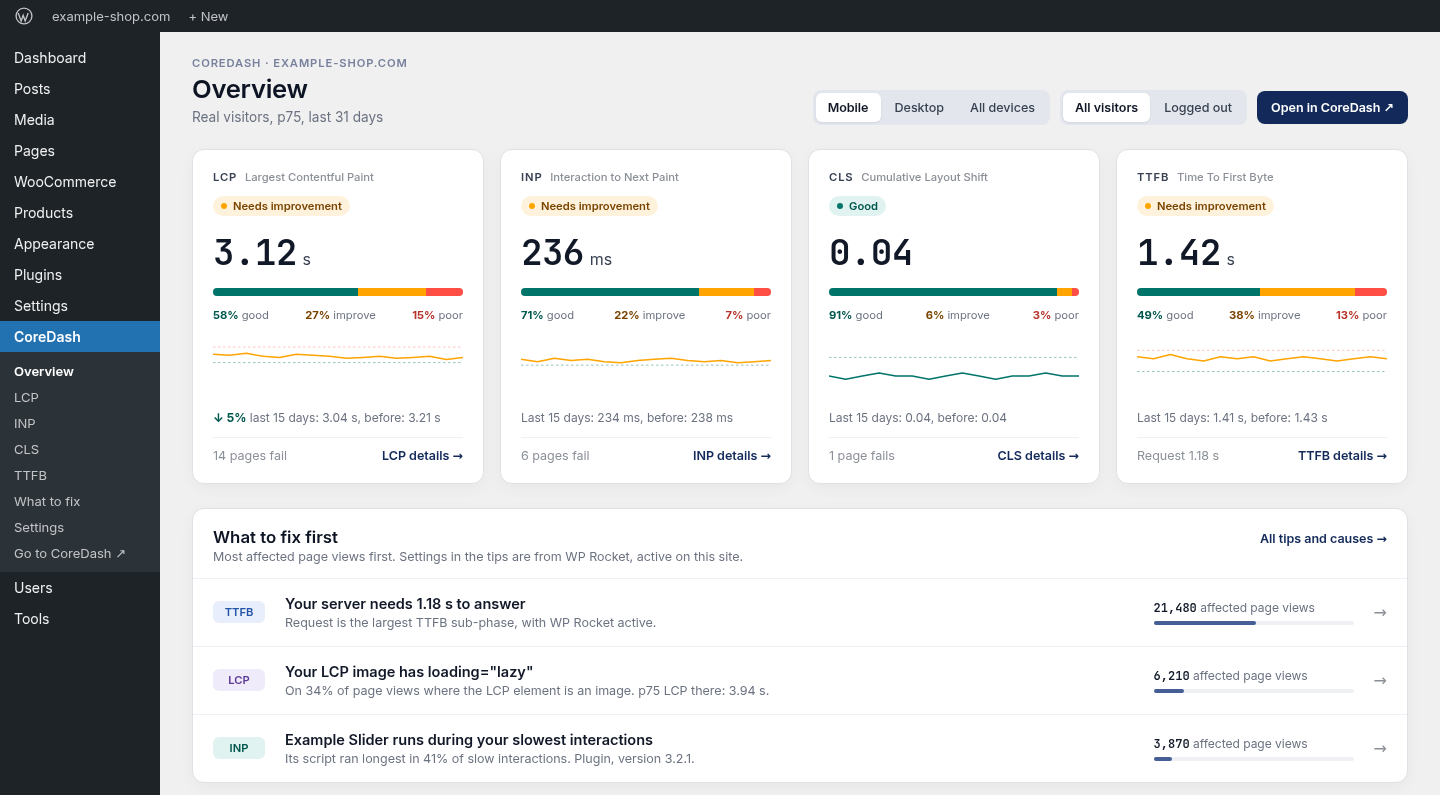
CoreDash › Overview in wp-admin once the site is connected.
CoreDash WordPress plugin requirements
- WordPress 5.8 or later.
- PHP 7.2 or later.
- A CoreDash project you own. Guests on a project can't connect a site.
- Multisite works.
Uploading the zip and connecting your project
- Download coredash.zip.
- In wp-admin, go to Plugins › Add Plugin (Add New on older versions) › Upload Plugin, choose
coredash.zip, click Install Now, then Activate Plugin.
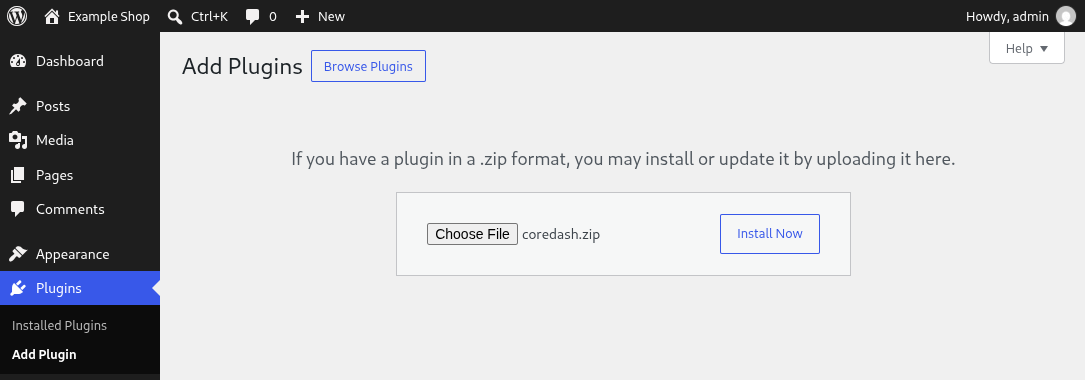
coredash.zip chosen, ready for Install Now.
- Open CoreDash › Overview and click Connect to CoreDash.
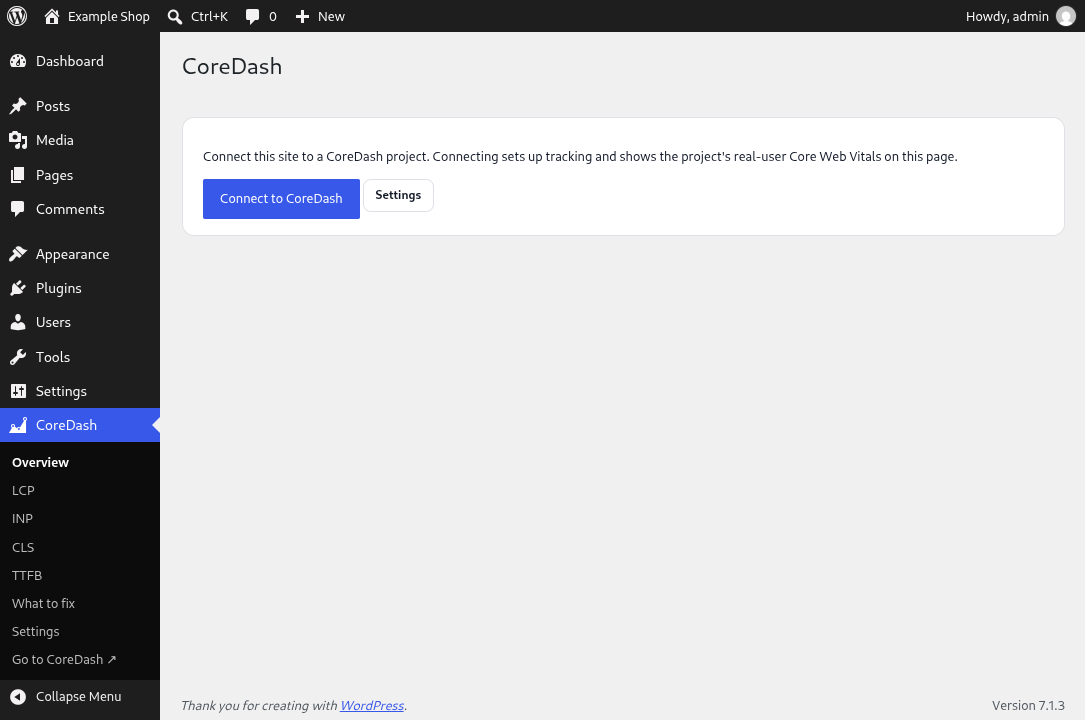
The CoreDash menu is there as soon as the plugin is active.
- Your browser goes to app.coredash.app. Log in, check that the screen names your site, pick your project under Project and click Connect.
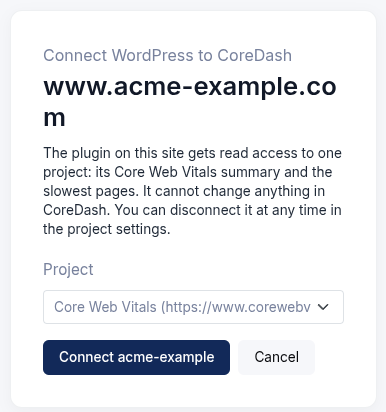
CoreDash asks which project this site may use.
- Back in wp-admin, the site is connected and the plugin adds the tracking script to your pages from now on.
- Clear your page cache. Pages that WP Rocket, LiteSpeed Cache or your host stored before you connected have no tracking script, and the cache keeps serving them until you clear it.
Many plugins like this ask you to paste a tracking ID or API key. This one has nothing to copy, so there is no key to leak: the site gets its own credential, stored in WordPress and never shown in the browser. It can read that one project and can't change anything in CoreDash. To cut one site off, the project owner revokes it in CoreDash under project settings › Integrations › WordPress sites.
Checking that CoreDash tracking works
Open a page of your site on your phone, then open the project in CoreDash. The page view shows up within seconds.
The wp-admin dashboard can take up to about 25 minutes to catch up (WordPress caches it 15 minutes, CoreDash 10). With 31 days behind every number, a fresh install needs traffic before the cards mean much.
CoreDash WordPress plugin settings
On your public pages the plugin adds only the tracking script, which needs no consent banner. In CoreDash › Settings you choose how it loads and on which pages.
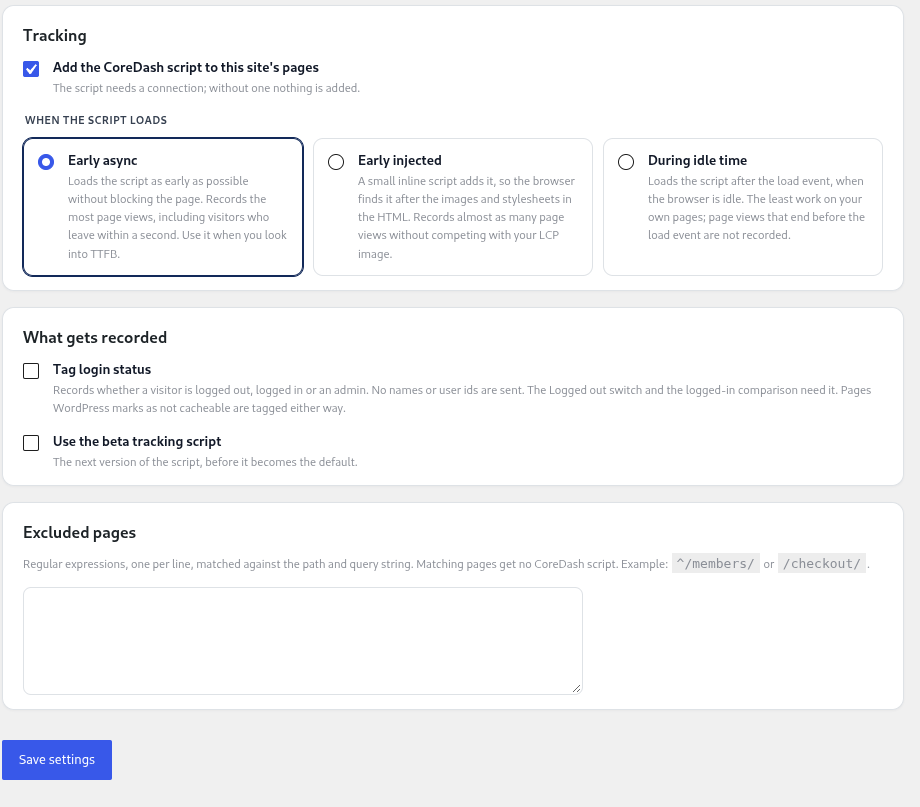
The defaults on a fresh install.
- Tracking: on by default.
- When the script loads:
- Early async (the default): as early as possible without blocking the page. Records the most page views, even visitors who leave within a second. Use it when you look into TTFB.
- Early injected: a small inline script adds it, so the browser finds it after the images and stylesheets in the HTML. Almost as many page views, and it doesn't compete with your LCP image.
- During idle time: after the load event, once the browser is idle. The least work for your pages, but page views that end before the load event go unrecorded.
- Tag login status (off by default): marks each page view as logged out, logged in or admin, without names or user ids. The Logged out switch needs it, and so does filtering out admin visits, which are tracked too.
- Use the beta tracking script: the next version of the script, before it becomes the default.
- Excluded pages: regular expressions, one per line, matched against the path and query string, such as
^/members/or/checkout/. Matching pages aren't tracked.
Updating and disconnecting the plugin
- Version 7.3.24 or older has no updater: upload
coredash.ziponce as above, click Replace current with uploaded, then connect. From 7.5.0 on, updates show on the WordPress Updates screen. - A project id pasted into an older version keeps tracking until you connect.
- Disconnect (in Settings) stops the wp-admin dashboard and tracking; your data stays in CoreDash. Deleting the plugin disconnects too.
Next: the Diagnosis dashboard. Other ways to install CoreDash cover sites without WordPress.

