Let the CoreDash bots through your CDN or firewall
Sometimes a firewall or CDN setting blocks the CoreDash bots, and this page shows you how to fix that.
Trusted by market leaders · Client results


















Let both CoreDash bots through your CDN or firewall
In short
- Both CoreDash bots name themselves with a user agent that starts with
CoreDash/, so one rule on it lets the cRUM audit and the uptime check through. - A rule on your project's bot token is the safer version of that rule.
- Bot Fight Mode on the Cloudflare Free plan ignores your rules, so it needs a fix of its own.
CoreDash has two bots that visit your site: the cRUM audit and the uptime check. To get the most out of CoreDash, your CDN or firewall has to let both of them in. Sometimes a setting there blocks them. This page shows you how to fix that in Cloudflare and AWS WAF, with one rule that covers both bots.
What the two bots do for you:
- The cRUM audit. When you pick a page under cRUM (beta) in the CoreDash menu, CoreDash opens that page in Chrome on its audit server, the way a visitor would, and shows you what slows it down. Its user agent is
CoreDash/1.0 (audit; +https://www.coredash.app/bot). - The uptime check. Every 30 minutes CoreDash requests each site you monitor from its own servers and tells you when one goes down. It sends
CoreDash/1.0 (uptime; +https://www.coredash.app/bot).
A user agent is the name a browser or bot sends along with every request to say who it is. Both of CoreDash's start with CoreDash/, and that is what your rule will look for.
What a blocked audit or uptime check looks like
Your firewall or CDN sees a visitor from a data center whose user agent isn't a browser's. It takes that visitor for a bot it doesn't trust and answers with an error code or a challenge page. Each bot shows that in its own way.
A blocked cRUM audit stops with the message "Audit failed" and an error under it. Or it runs anyway, on the block page: the Page load filmstrip then shows a challenge or an error page in place of yours, and every number in the audit belongs to that page.
The uptime monitor says Blocked, and its notice "A firewall blocks the checker" gives the status code the checks got and since when. CoreDash leaves blocked checks out of your downtime, so the block doesn't lower your uptime. But while every check gets blocked, none of them reaches your site, so the monitor can't tell you when your site goes down.

The monitor page for example-shop.com when Cloudflare answers every uptime check with a 403.
How your firewall recognises CoreDash
You make one exception for CoreDash in your firewall or CDN, and most people make it on the user agent: one rule on CoreDash/ lets the audit and the uptime check through. Your project's bot token turns that into a tighter rule, because only your own project's bots send it. CoreDash's IP addresses are for when nothing else gets through. They change when CoreDash adds or moves a server, so you have to keep a rule on them up to date yourself.
Which setting needs the exception, your firewall's log tells you. Cloudflare's log comes in the next section. For AWS WAF, go to the section "Allow CoreDash in AWS WAF, above Bot Control" further down.
Find what stopped CoreDash in Cloudflare
Open your domain in Cloudflare and go to Security › Analytics, tab Events. Under Sampled logs, find a request with a CoreDash user agent. On a busy site, click Filter, choose User agent as the field and paste the full user agent as the value: CoreDash/1.0 (uptime; +https://www.coredash.app/bot) for the uptime check or CoreDash/1.0 (audit; +https://www.coredash.app/bot) for the audit.
Click the request to open it. Its Service line names the Cloudflare feature that stopped it.
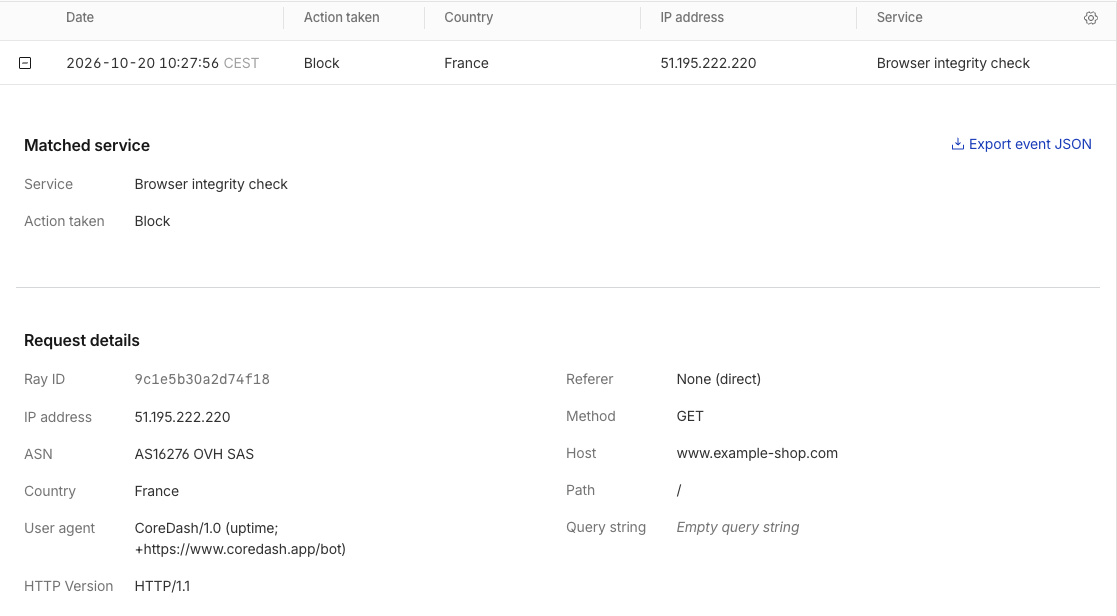
Browser Integrity Check blocked this uptime check on example-shop.com.
That Service line decides your fix:
- Bot fight mode: this is the bot protection of the Cloudflare Free plan, and your rules can't make an exception for it. Skip to the section on Bot Fight Mode further down.
- Anything else, like Browser integrity check in the screenshot, a managed rule or Super Bot Fight Mode: make the Skip rule below.
Let CoreDash through Cloudflare with a Skip rule
A Skip rule tells Cloudflare to leave every request with a CoreDash user agent alone for the features you pick. It covers the audit and the uptime check at once, and you can make one on every Cloudflare plan.
- Go to Security › Security rules. Under Custom rules, click Create rule.
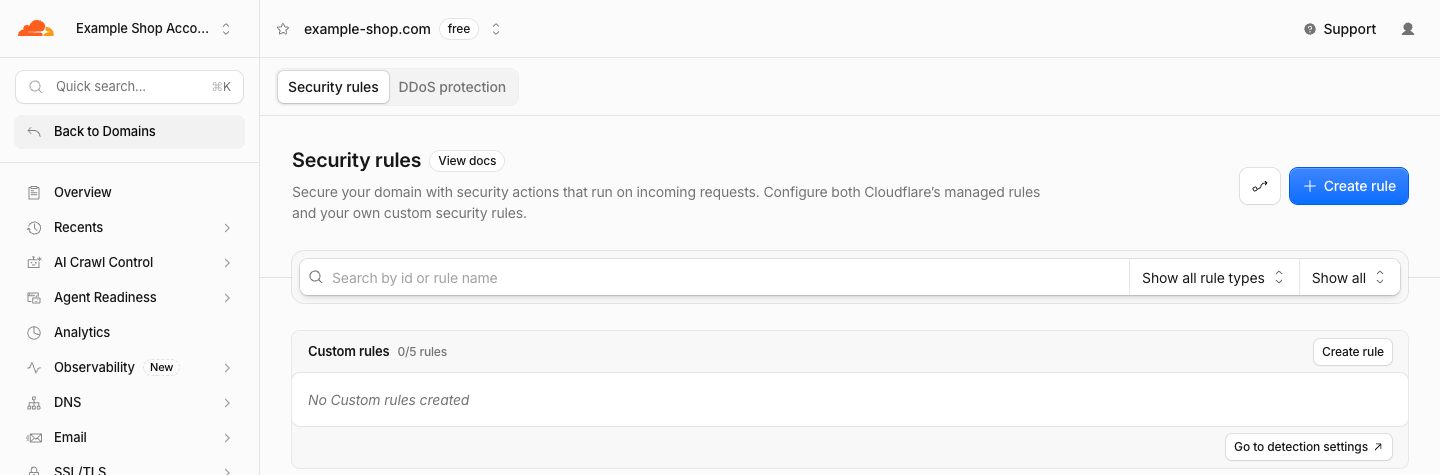
Security rules for example-shop.com, before the first custom rule.
- Name the rule CoreDash. Under "When incoming requests match", click "Edit expression", and paste this line in the text box that opens.
http.user_agent contains "CoreDash/"
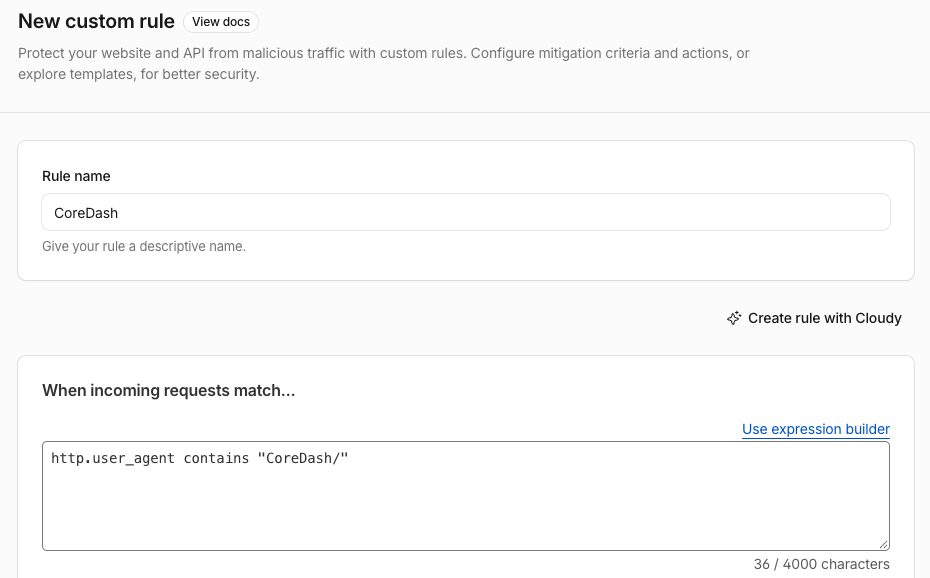
Rule name and expression, after the click on "Edit expression". The slash after CoreDash belongs in it.
- Under "Then take action", choose Skip, and pick what Cloudflare skips for CoreDash. In "WAF components to skip", tick "All managed rules" and "All Super Bot Fight Mode Rules". Click "More components to skip" to open it, and tick "Browser Integrity Check" as well. Leave "Log matching requests" on, so Events shows the rule at work later.
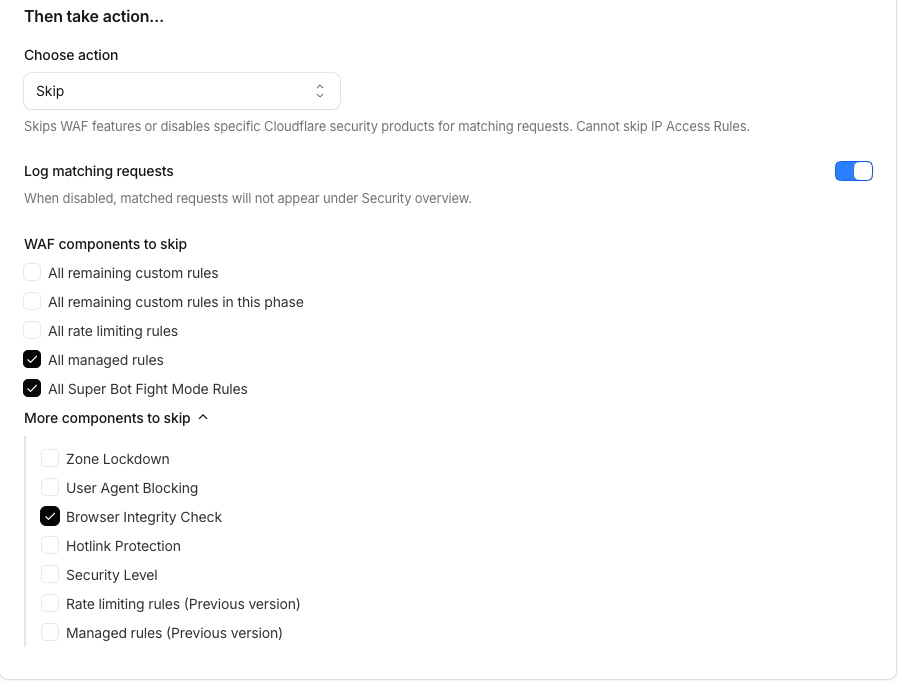
The action Skip, with the three boxes ticked.
- Click Deploy. If your domain already has other custom rules, Cloudflare asks where to place this one: put it first.
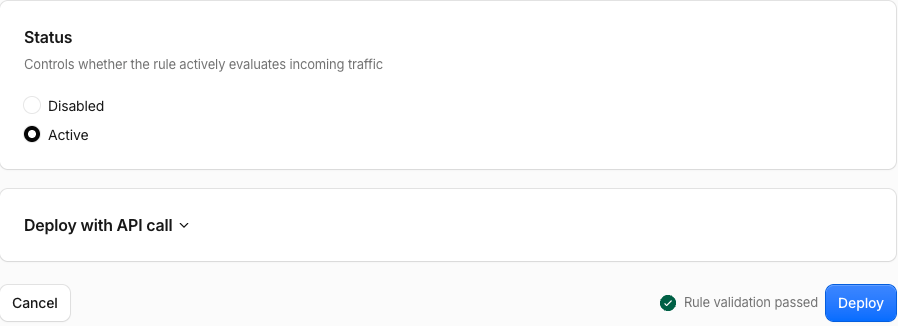
Without other custom rules there is nothing to place, so Deploy is the last click.
- Check that CoreDash gets through. Once the next audit or uptime check arrives, Events in Cloudflare lists it with the action Skip. In CoreDash, check whichever bot you use, or both.
For the cRUM audit, pick the page under cRUM (beta) again, or reload the browser tab it's open in, and a new audit starts. Once it gets through, the Page load filmstrip shows your own page loading in Chrome, frame by frame.
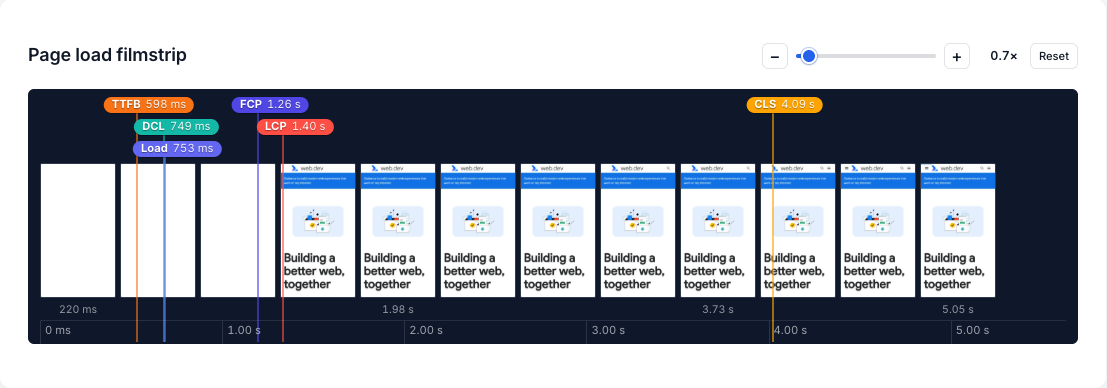
A finished audit, with TTFB, FCP, LCP and CLS marked on the frames.
The uptime check needs no click: CoreDash checks on the hour and on the half hour, so within 30 minutes the monitor turns Up and the new bars are green.
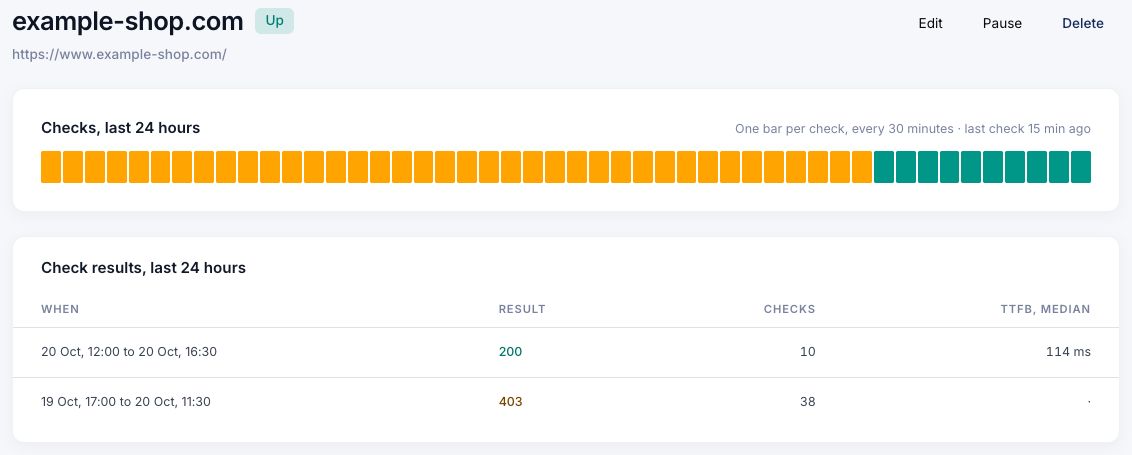
example-shop.com is Up again: 38 checks got a 403, and every check since the rule got a 200.
A safer Cloudflare rule with your CoreDash bot token
Anyone can send a user agent that starts with CoreDash/, so a bad bot that pretends to be CoreDash gets through the Skip rule too. Your project's bot token is a secret: every audit and uptime check sends it along in a header named X-CoreDash-Bot. A rule on that token lets only your own project's bots through.
To get it, open Project settings in CoreDash and go to the tab "CoreDash bot token". Only the project owner can open it. While a monitor says Blocked, the link "View your CoreDash bot token" in its notice takes you there too. Click "Copy Cloudflare rule": you get the full expression with your token in it.
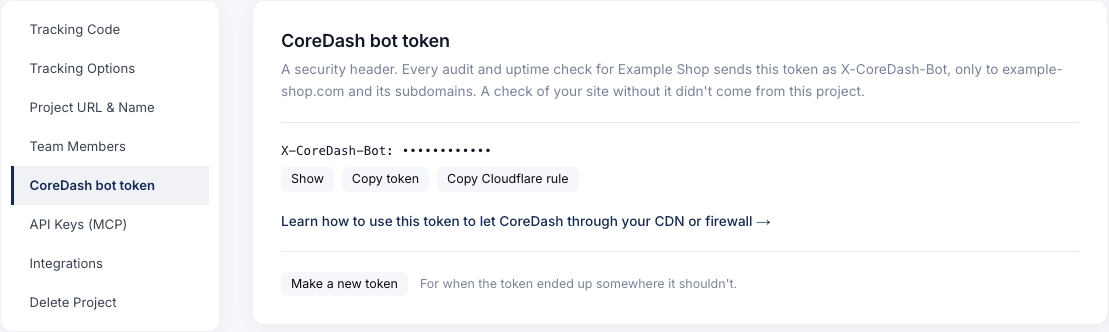
"Copy Cloudflare rule" puts the expression with your token on your clipboard.
If you already made the Skip rule, go to Security › Security rules and open the CoreDash rule. Replace the user agent line in its expression with what you copied, and save the rule. The action and the ticked boxes stay as they are. Without a rule yet, follow the Skip rule steps above and paste the token line in step 2.
The token only goes to your project's own site and its subdomains. A monitor or an audit of a page on another domain sends no token, so that domain keeps the user agent rule. And if the token ever ends up somewhere it shouldn't, click "Make a new token". The old token stops working right away, so put the new one in your Cloudflare rule straight after.
Bot Fight Mode on the Cloudflare Free plan
This part is for you when the Service line in Events said Bot fight mode.
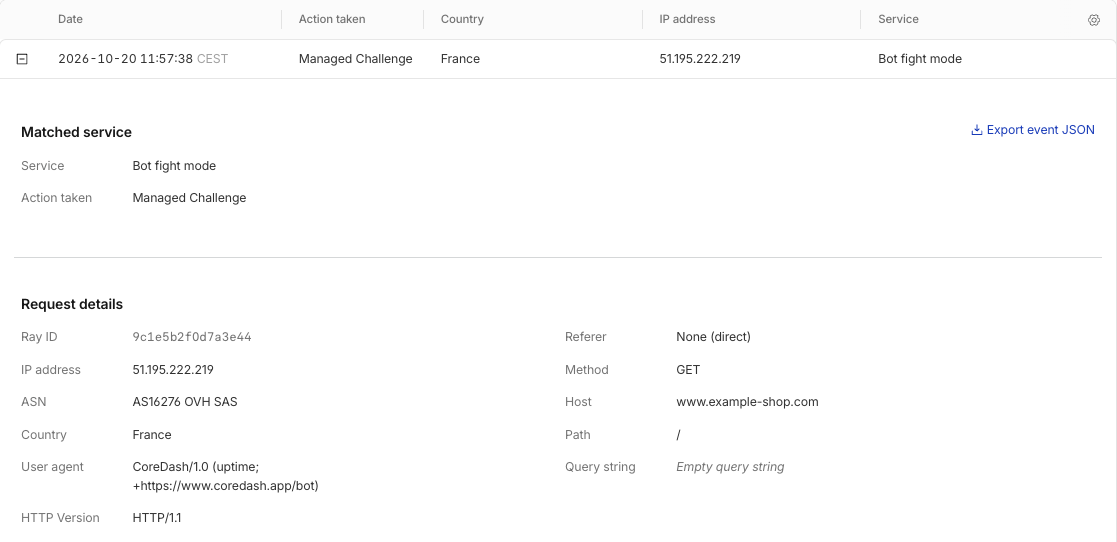
A CoreDash uptime check with the action Managed Challenge and the Service Bot fight mode.
Bot Fight Mode challenges simple bots that run on cloud servers, and to Cloudflare, both CoreDash bots are such bots. Cloudflare's documentation says Skip and Allow rules have no effect on it. So you either switch it off, or keep it on and let CoreDash's IP addresses past it.
Switch Bot Fight Mode off
Go to Security › Settings and filter on Bot traffic. Find the row "Bot fight mode" and turn its switch off. Cloudflare then stops challenging those simple bots on your whole site. If you'd rather keep that kind of protection, the Pro plan has Super Bot Fight Mode instead, and that one does listen to the Skip rule. With the switch off, make the Skip rule above as well, so Browser Integrity Check or a managed rule doesn't stop CoreDash next.
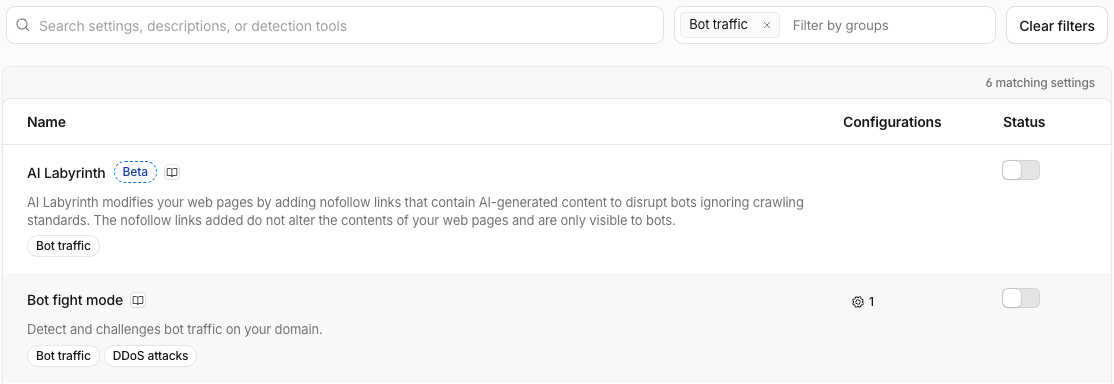
The switch for Bot fight mode sits in the Status column. In this shot it's already off.
Keep Bot Fight Mode on and allow CoreDash's IP addresses
Before you start: these addresses aren't fixed. Your IP access rules stay exactly as you typed them, while the current list is always at app.coredash.app/bot/ips.json. If CoreDash gets blocked again some day, compare your rules with that list first.
An IP access rule lets one IP address past your firewall rules, and Bot Fight Mode leaves a request alone when such a rule matched it first. Go to Security › Security rules and click Create rule under IP access rules. If Cloudflare suggests building it as a custom rule, choose "No, go to IP access rules". Enter 51.195.222.219, choose Allow and "This website", and click Create. Make one rule per address: 51.195.222.219 and 51.195.222.220 for the uptime check, 135.125.202.210 for the cRUM audit.
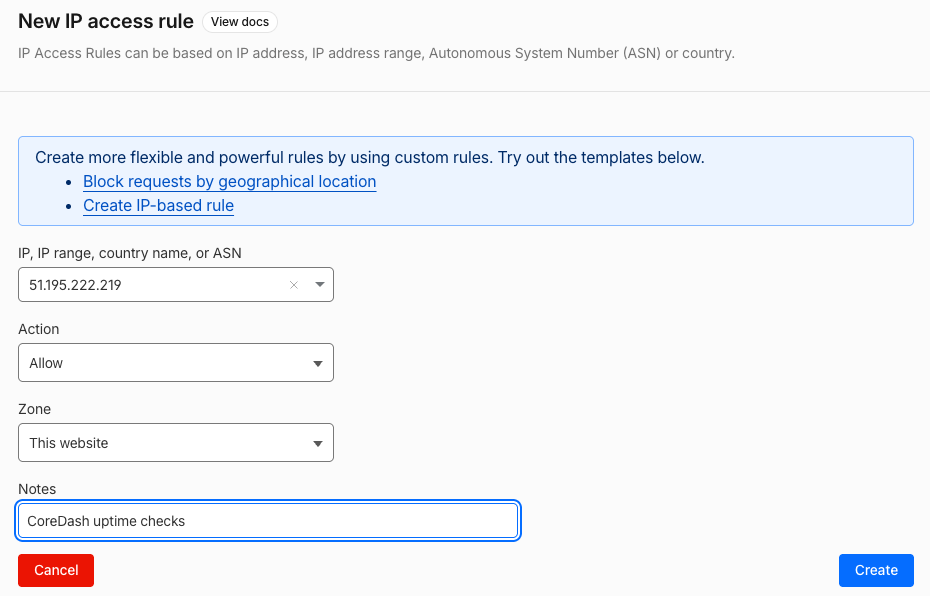
One IP access rule per CoreDash address, set to Allow on this website.
After either fix, check that CoreDash gets through, the same way as in step 5 of the Skip rule.
Allow CoreDash in AWS WAF, above Bot Control
On AWS WAF, what stops CoreDash usually sits in Bot Control, the managed rule group AWS offers against bots. You fix it with an Allow rule for the CoreDash user agent, placed above Bot Control, and that one rule lets the audit and the uptime check through. The AWS screenshots here come from a demo setup for acme-aws.com, made for this page.
- In the AWS WAF console, open the web ACL of your site (the set of rules that protects it) and go to the tab Sampled requests. Click the URI of a request to see its headers: the CoreDash ones have a user agent that starts with
CoreDash/. The column "Rule inside rule group" names the rule that blocked them.
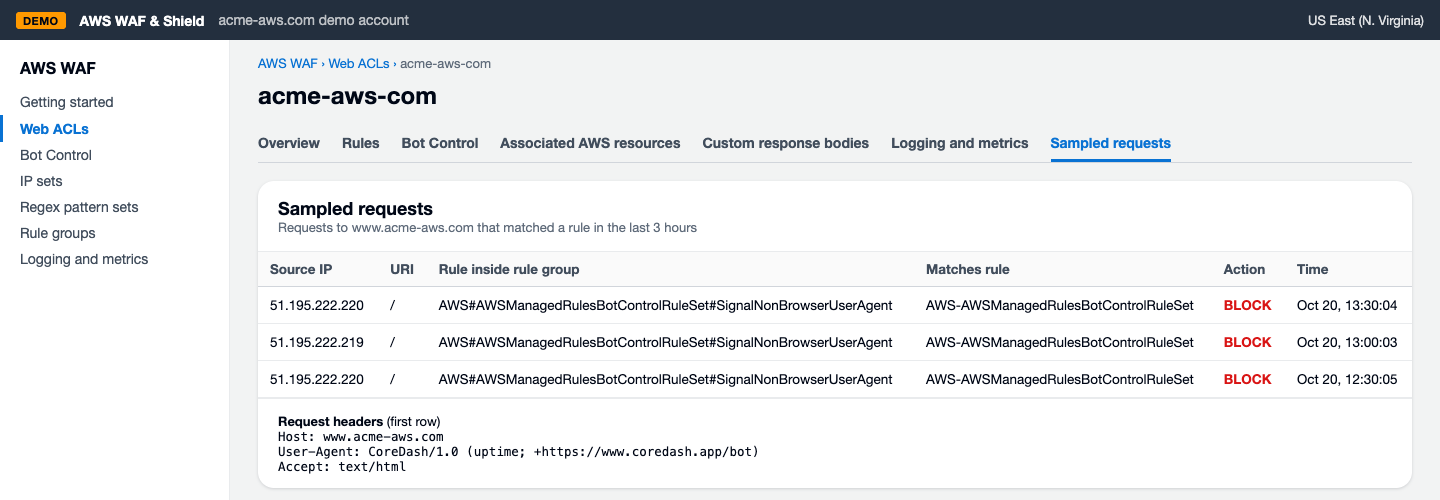
Bot Control's rule SignalNonBrowserUserAgent blocks the CoreDash uptime checks on acme-aws.com.
- On the web ACL, click Add rules › "Add my own rules and rule groups" to open the Rule builder (in the new AWS console it's called Custom rule). Fill it in as in the screenshot: a regular rule named CoreDash that looks at the user-agent header and allows every request where it starts with
CoreDash/. Then scroll down below the form and click "Add rule".
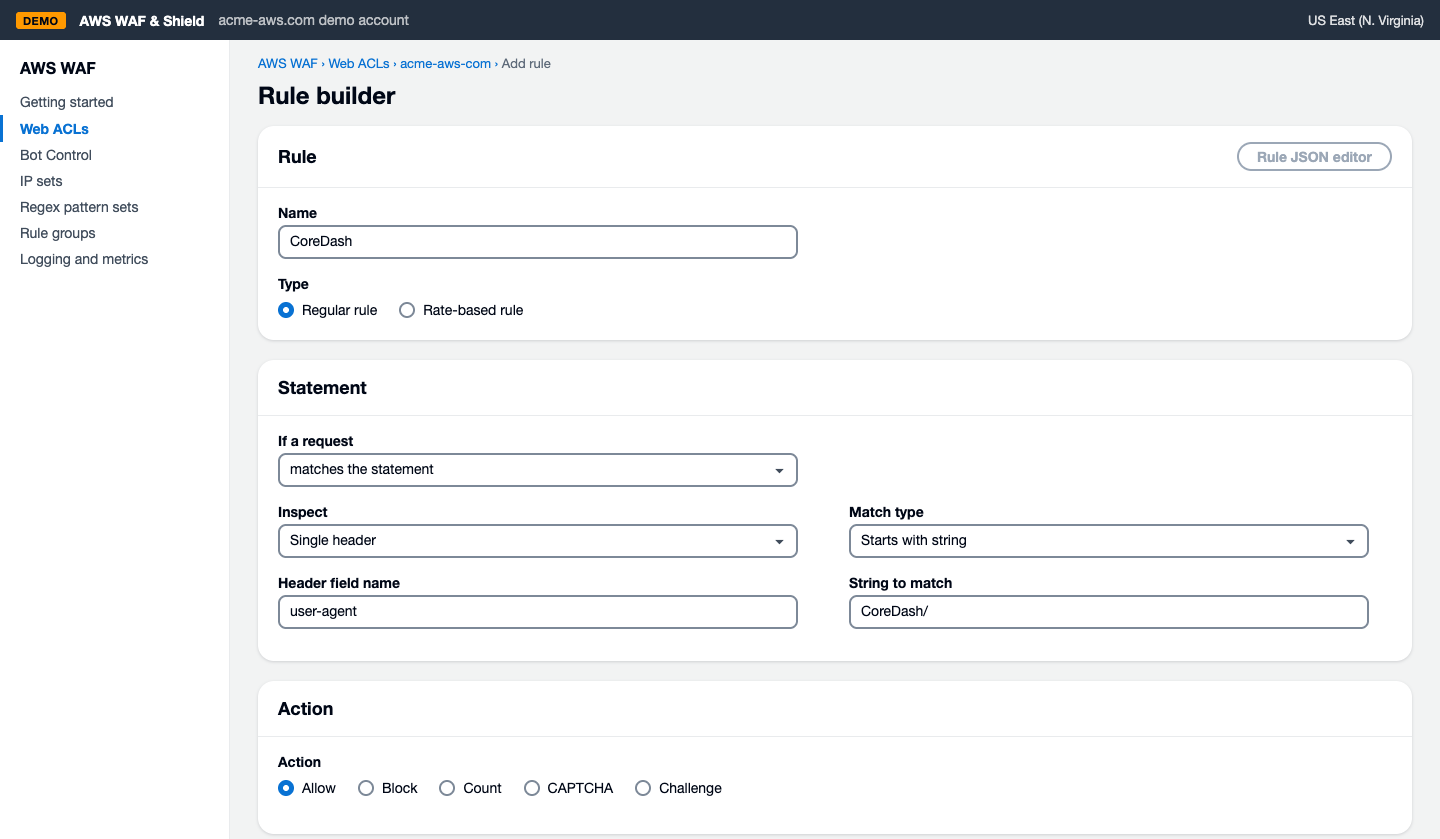
The CoreDash rule: Single header user-agent, Starts with string CoreDash/, action Allow.
- AWS then opens "Set rule priority". Select CoreDash, click "Move up" until it sits at the top and click Save. AWS runs the rules from the top down, and a request that matches an Allow rule goes no further, so Bot Control never sees a CoreDash request.
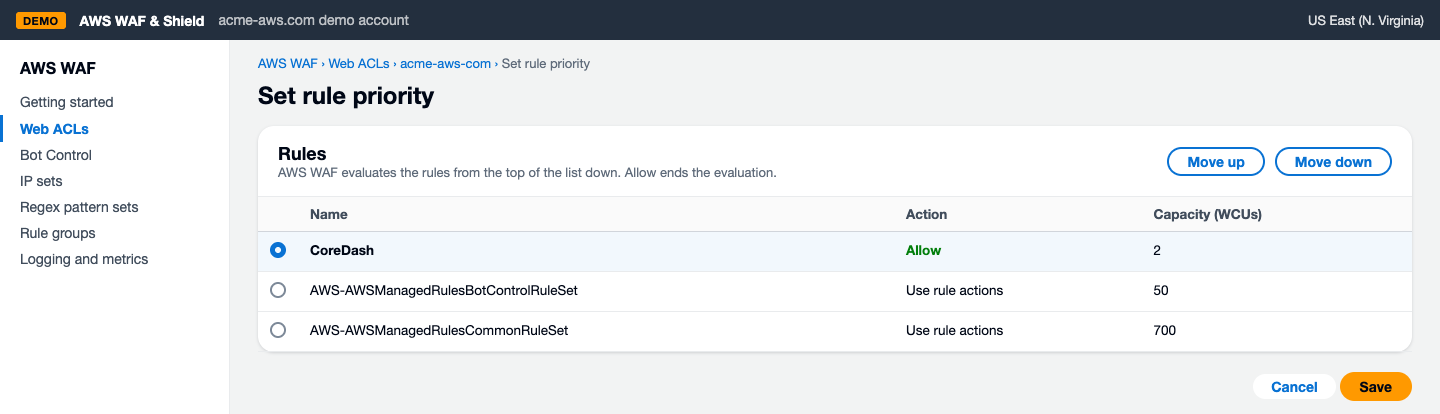
CoreDash at the top, above the Bot Control rule group.
- Check that CoreDash gets through. In Sampled requests, the newest CoreDash requests now show your CoreDash rule with the action Allow.
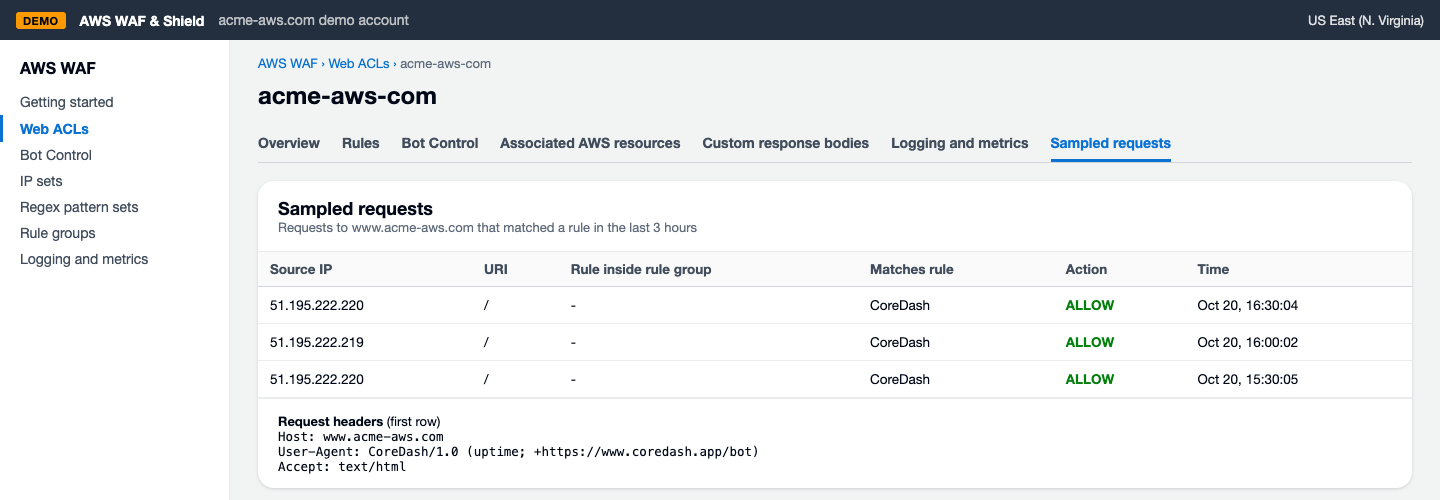
The newest CoreDash checks on acme-aws.com match the CoreDash rule and get through.
In CoreDash, check whichever bot you use, as in step 5 of the Cloudflare Skip rule: a new audit shows your own page in the Page load filmstrip, and the monitor turns Up after the next uptime check.
As on Cloudflare, your project's bot token makes this rule safer. Why, and which sites get the token, is in the section on the Cloudflare token above. To switch the AWS rule over to the token:
- In CoreDash, open Project settings, go to the tab "CoreDash bot token" and click "Copy token".
- In AWS WAF, open the CoreDash rule on your web ACL again. It's the form from the Rule builder screenshot above.
- Change the header field name from
user-agenttox-coredash-bot. AWS reads header names without regard to upper or lower case, so this is theX-CoreDash-Botheader. - Set the match type to "Exactly matches string", paste your token as the string to match, and save the rule.
The origin check times out behind your CDN
This part is about the uptime check only, and only if you filled in Origin IP under Advanced when you set up the monitor. CoreDash then also checks your server directly, around your CDN. Some servers only accept requests from the CDN's own addresses. The monitor then goes Down with "The origin check fails: Connect timeout", while visitors still get pages from the CDN.
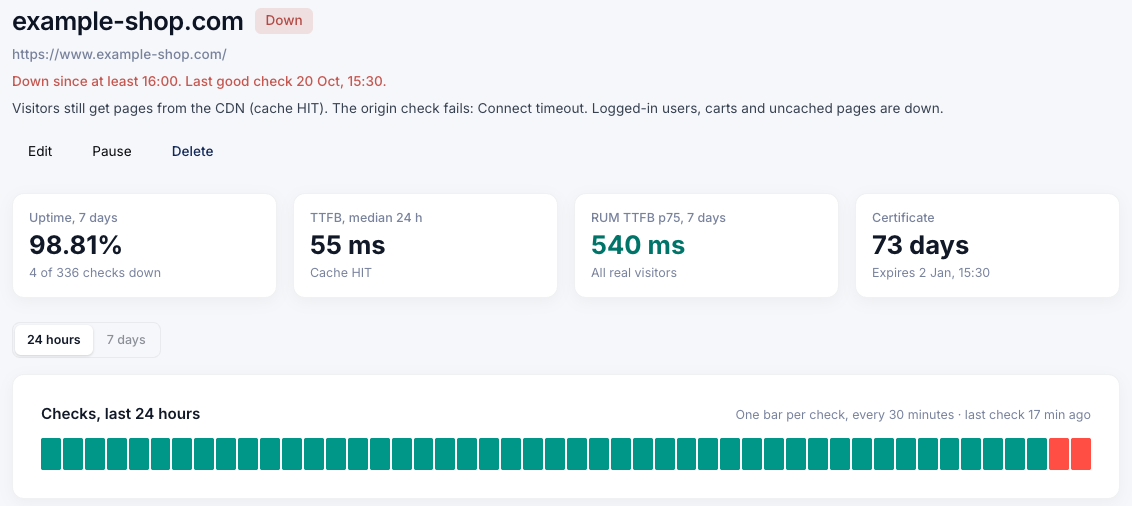
The CDN still serves cached pages, and the check on the server itself times out.
A rule on the user agent or the token can't help here: such a server drops the check because of where it comes from, before it reads any header. So it has to know CoreDash by its IP addresses. Allow the two uptime addresses, 51.195.222.219 and 51.195.222.220, in your server's firewall, or ask your host to do it. If the origin check starts timing out again later, look at the current list first: the addresses may have changed.
CoreDash is still blocked
If the monitor still says Blocked or the audit still fails, open the log again and click the newest CoreDash request: Events in Cloudflare, Sampled requests in AWS. Whatever it names is what stops CoreDash now. The usual reasons:
- A different feature than before, such as Browser integrity check after you switched off Bot Fight Mode. Make the Skip rule as well.
- The rule isn't active, or in AWS it isn't at the top. In Cloudflare, the CoreDash rule should say Active under Custom rules. AWS wants it at the top of "Set rule priority".
- The rule reads differently from the steps. Cloudflare needs contains and
CoreDash/with the slash; AWS needs the header user-agent and "Starts with string". - One of your own Cloudflare rules, such as a rule that blocks countries. The Skip rule leaves your own custom rules running, so change that rule to leave CoreDash out. Events shows which country the request came from.
- Under Attack Mode. It challenges every visitor, CoreDash included, until you switch it off.
- A request that went through, or no CoreDash request at all. Then another firewall sits in front of or behind Cloudflare or AWS, such as your host's firewall or a rule on your server. Allow the
CoreDash/user agent there too.
Still stuck? Contact CoreDash with the URL of the monitor or the audited page, and the time it got blocked.
What both bots send, and why, is on the CoreDash bot page. More on monitors: uptime monitoring, and for scripts the Uptime API.

