Core/Dash Installation easy RUM Tracking setup

Get started with Core/Dash in minutes. 

Free trial

Trusted by market leaders · Client results

nina carefotocasaloopearplugsebayerasmusmccompareworkivaaleteiaharvardadevintasnvkpnmonarchhappyhorizonmarktplaatsnestledpg mediamy work featured on web.devwhowhatwearsaturnperionvpn

Your AI problem solved: Real time Core Web Vitals Data Access

Here's a thing I keep running into. Developers good developers, developers who care about performance, will open Claude or Cursor, describe a Core Web Vitals problem in vivid detail, and ask the AI for help. And the AI will give a perfectly reasonable answer based on… nothing. It'll speculate. It'll offer generic advice. It'll suggest you "check your LCP element" without knowing what your LCP element actually is.
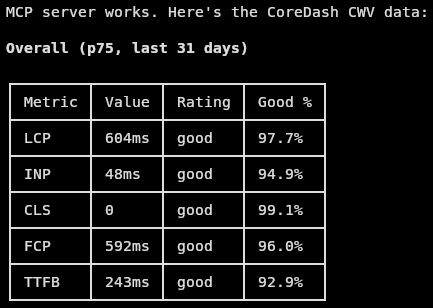
It gets worse in coding agents. Cursor is refactoring your hero component. Claude Code is building a new product template. These agents are making decisions that directly affect your Core Web Vitals. Image sizes, lazy loading, script placement. But they're flying blind. They have no idea what your current LCP is, which element is causing it, or whether the page they're touching is already in the "poor" bucket on mobile.

The problem is not AI but that the AI has no access to your data.

This is  what the CoreDash MCP server solves. It gives any MCP compatible AI agent (Claude Desktop, Cursor, Claude Code, Windsurf, Gemin CLI whatever you use) direct, seccure and  authenticated access to your site's Real User Monitoring data. All 5 Core Web Vitals. All 25+ filter dimensions. The same query engine that powers the CoreDash dashboard, speaking the same protocol.

The result is that instead of guessing, the AI knows. It can tell you that your LCP is 3,102ms on mobile because div.hero-image > img is a 2.4MB unoptimized JPEG without fetchpriority="high". It can tell you that last Thursday's deploy caused an 18% INP regression on mobile, isolated to button .add-to-cart. It can tell you that your TTFB in Germany is 1,400ms (nearly double the rest of Europe)  because you're not hitting the CDN edge in Frankfurt.

This changes the workflow in two ways. The obvious one: instead of context switching to a dashboard, clicking through filters, squinting at charts, and then going back to your editor to explain what you found. You just ask. The AI fetches the data, interprets it, and gives you a clear answer. All within the same conversation.

The less obvious one (and arguably the bigger deal): coding agents can now check Core Web Vitals while they write code. Cursor refactoring a hero section? It can pull the current LCP attribution for that page and see that the image is already the LCP element, so it knows not to lazy load it. Claude Code building a new checkout flow? It can check that INP on your existing checkout is 380ms on mobile, identify the heavy event handler, and avoid repeating the same pattern. The agent doesn't just write code that looks performant. It writes code informed by what's actually happening in production.

Included in your plan. MCP access ships with every CoreDash account. No add on, no upsell. If you have a project, you can generate an API key right now.

How the Server Teaches the Agent

A question I get a lot: "I just point Claude at a URL,  how does it know what to do?"

The answer is that MCP (the Model Context Protocol) is self describing. When your AI client connects to the CoreDash endpoint, the server doesn't just sit there waiting for commands. It actively teaches the agent everything it needs to know, across three layers:

Server instructions:  a natural language prompt that explains what CoreDash is, what the metrics mean, and how to investigate performance issues. Think of this as a system prompt that gets injected into the AI's context at connection time. The agent reads this and suddenly understands that LCP measures loading, INP measures interactivity, CLS measures visual stability, and that p75 is the standard percentile2.

Tool descriptions: each tool has a description field that acts as a decision function. The AI reads "get current metrics, filter by any dimension, group by dimension" and knows that this tool handles snapshot questions. It reads "get metrics over time, trend detection" and knows that tool handles trend questions.

JSON Schema: every parameter has a type, allowed values, and a description. The agent reads "d": { "type": "string", "description": "Device Type. Values: mobile, desktop" } and knows exactly how to filter by device. No guesswork. No hallucination.

No client side configuration. No custom prompts. No documentation to read. You connect, and the agent auto discovers everything through the protocol itself.

Under the hood, it's beautifully boring: stateless HTTPS POST, JSON-RPC 2.0, Bearer token auth. Each request is independent. No sessions, no WebSockets, no connection pools. The whole thing runs on Vercel's serverless functions without modification. Any request can be handled by any server instance. Horizontal scaling is automatic.


Getting Started

The setup genuinely takes about three minutes. I know everyone says that. I mean it. You need three things: a CoreDash account, an API key, and a config file. No SDK. No npm install. No infrastructure.

Step 1: Generate an API Key

Log in to CoreDash, open Project Settings for your project, and click the API Keys (MCP) tab.

Give the key a name that tells you where it's used ("Claude Desktop", "Cursor", "CI Pipeline"), whatever helps you identify it later. Click Generate API Key.

A card appears with the full key. Copy it now. It is shown exactly once. We hash it with SHA 256 the moment you generate it and only store the hash. If you lose it, you'll need to create a new one.

Key scoping. Each key is locked to a single project. If a key is compromised, it cannot access your other projects. You can create as many keys as you need per project (one for each team member, one for CI) and revoke any key instantly from the same tab. Only project owners can manage keys. Guest users cannot.

Step 2: Configure Your MCP Client

Every MCP client needs the same two things: the endpoint URL and your API key in an Authorization header. The config is almost comically simple:

Claude Desktop

Add this to ~/Library/Application Support/Claude/claude_desktop_config.json on macOS, or %APPDATA%\Claude\claude_desktop_config.json on Windows:

{  
"mcpServers": {
    "coredash": {
      "url": "https://app.coredash.app/api/mcp",
      "headers": {
        "Authorization": "Bearer cdk_YOUR_API_KEY"
      }
    }
  }
}

Restart Claude Desktop. The tools appear automatically.

Step 3: Start Coding

That's it. There is no step 4. The next time you open Cursor, Claude Code, or Windsurf and start working on a page, the agent already has your production data. Ask it to refactor a component, and it'll check the CWV for that page before writing a line. Ask it to review a pull request, and it'll tell you whether the pages you touched are passing Core Web Vitals or not.

Try something simple to verify the connection works:

"What are the current Core Web Vitals for /product on mobile?"

If the agent calls get_metrics and comes back with real numbers, you're live. If authentication fails, the error will be clear. Maybe a missing or revoked API key.

The Two Tools

The MCP server exposes exactly two tools. This is deliberate. AI agents, like humans, work best with a small, well documented surface area. Give an agent 20 tools and it'll spend half its time choosing the wrong one. Give it two, with clear descriptions and rich parameter schemas, and it'll get it right every time.

Every "what is the current state?" question uses get_metrics. Every "how has it changed over time?" question uses get_timeseries. The filter system provides the depth.

get_metrics

This is the snapshot tool. It returns current Core Web Vitals, the percentile value, the rating (good/improve/poor), and the full distribution of user experiences. You can filter by any dimension, group by a dimension to compare segments, and adjust the percentile and time range. Every parameter is optional; calling it with no arguments returns all five metrics at p75 for the last 31 days.

ParameterDefaultWhat it does
metricsAll fiveComma separated: LCP,INP,CLS,FCP,TTFB
percentilep75p50, p75, p80, p90, p95
filters{}Any dimension: { "d": "mobile", "cc": "DE" }
groupnoneGroup by a dimension to compare segments
date-31d-6h, today, -1d, -7d, -31d
limit10Max segments when grouping (1–50)

Example: "What's the LCP for mobile users on /blog in the last 7 days?"

{ "metrics": "LCP", "filters": { "d": "mobile", "ff": "/blog" }, "date": "-7d" }

Example: "Compare LCP and INP across device types"

{ "metrics": "LCP,INP", "group": "d" }

Example: "Show me the 5 slowest pages"

{ "metrics": "LCP", "group": "u", "limit": 5 }

get_timeseries

This is the trend tool. It returns a series of data points over time, one per time bucket. The standout feature is the summary. The server automatically splits the timeseries in half, averages each half, calculates the percentage change, and classifies the trend as improving (< -5%), stable (-5% to +5%), or regressing (> +5%). The agent reads this and gives you a definitive answer: "LCP improved 13% over the last month" or "INP regressed 18% since Thursday."

This is important. It means the AI doesn't just show you a chart and leave you to eyeball it. It interprets the trend for you. That's a material difference in workflow speed, especially when you're doing post deploy checks at 5pm on a Friday4.

ParameterDefaultWhat it does
metricsAll fiveComma separated metrics
percentilep75Any percentile
filters{}Same filter system as get_metrics
date-31dTime range
granularitydayhour, 6hours, day, week

Example: "Check if INP regressed on mobile in the last 6 hours"

{ "metrics": "INP", "filters": { "d": "mobile" }, "date": "-6h", "granularity": "hour" }

Slicing the Data: 25+ Filter Dimensions

Filters are where this gets genuinely powerful. Every filter key corresponds to a RUM dimension collected from real users' browsers. The same dimensions you see in the CoreDash dashboard. Same keys, same values, zero divergence.

Pass them as an object: { "d": "mobile", "cc": "US", "ff": "/blog" }

The ones you'll use every day

KeyDimensionExample values
dDevice Typemobile · desktop
ffTop Pathname/ · /blog · /product
uFull URL/blog/my-post
ccCountryUS · NL · DE · JP
browserBrowserChrome · Safari
osOperating SystemAndroid · iOS

The ones for root cause analysis

These are the attribution dimensions. They tell you which element or which script caused the problem. When the AI groups by lcpel, it can tell you the exact CSS selector of your LCP bottleneck. When it groups by inpel, it identifies the exact interaction target. This is the kind of data that turns a vague "INP is slow" into a precise "button.add-to-cart has a 245ms handler attached by carousel.bundle.js."

KeyDimensionExample values
lcpelLCP ElementCSS selector path
lcpetLCP Element Typeimage · text · video
lcpprioLCP Prioritypreload state (0–4)
inpelINP Elementinteraction target
clselCLS Elementshifting element
lurlLOAF URLLong Animation Frame script

The ones for segmentation

KeyDimensionExample values
dlNetwork Speed1.5 · 10 · 50 Mbps
mDevice Memory2 · 4 · 8 GB
fvVisitor Typenew · repeat
liLogged in Statusin · out · admin
lbPage Labelvia __CWVL
abA/B Testvia __CWAB

You can also use operators beyond exact matching: wildcards (/blog/*), negation ([neq]mobile), and regex ([regex]^/product/[0-9]+).

What the Responses Look Like

Every metric in every response has the same shape. The MCP layer transforms raw Druid quantile sketches and CDF arrays into clean, human readable JSON. Your AI agent never sees internal encoding.

{
  "value": 2345.12,     // the p75 (or whichever percentile you requested)
  "unit": "ms",          // "ms" for time metrics, "" for CLS
  "rating": "improve",  // based on official thresholds
  "distribution": {     // % of real page loads in each bucket
    "good": 62.3,
    "improve": 24.1,
    "poor": 13.6
  }
}

The distribution is the thing that elevates this beyond a single number. A p75 LCP of 2,400ms looks fine. It's under the 2,500ms threshold, you might be tempted to move on. But if 13.6% of your page loads are poor, that's not fine. That's potentially thousands of users per day having a bad experience. The AI sees this and can flag it. Averages, and even percentiles, hide the tails. The distribution shows you the truth6.

A Real Investigation, Start to Finish

Let me show you what this actually looks like in practice. No staging. No demo data. A real debugging flow:

In a coding agent: performance aware refactoring

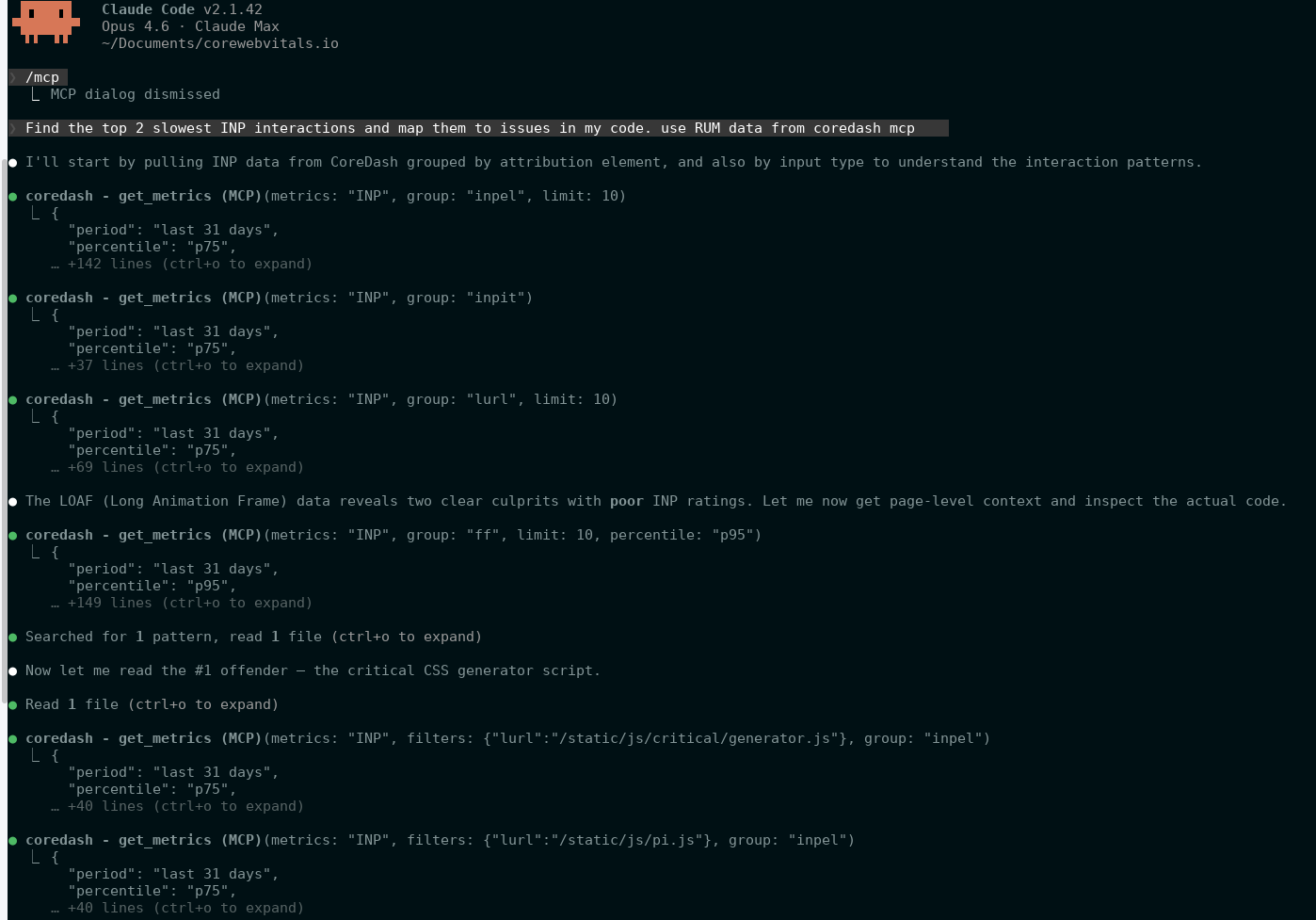
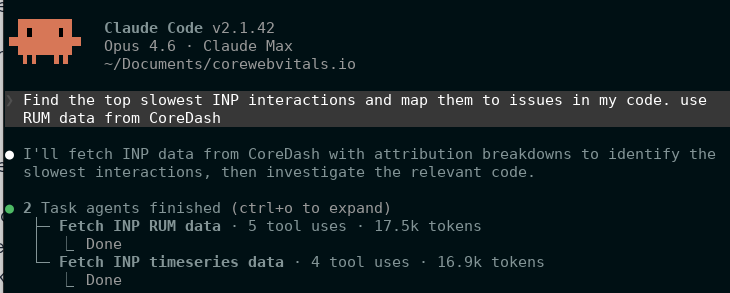
The chat example is dramatic, but the coding agent case might be more valuable day to day. Here's what happens when Cursor has the MCP connected and you ask ito find slow INP interactions and match is to real code issues:

The agent checked. It looked at the actual INP attribution data for that site, saw which ionteractions were poor. Decided to look up LOAF data to find the scripts responsible and correctly identified them before fixing the issues with the scripts! That is better then 99% of the Core Web Vitals experts out there are able to do. 
That's the difference between a coding agent that produces generic "best practice" code and one that produces code tailored to your site's real performance profile.

Rate Limits

MCP requests share daily limits with CoreDash AI features. Limits reset at midnight UTC.

PlanDaily requests
Trial30
Starter100
Standard500
Pro1.000
Enterprise50.000

When Things Go Wrong

Errors are JSON-RPC 2.0 format. The AI reads them and explains what happened in plain language. The ones you'll see most often:

  • -32001 Authentication Error: key missing, wrong, or revoked. Check that it starts with cdk_ and that the Authorization header uses Bearer.
  • -32002 Rate Limited: you've used your daily allowance. The message tells you the exact count and reset time.
  • -32603 Internal Error: server side issue (database unreachable, etc.). Retry in a minute.

Security

I want to be explicit about the security model because these keys touch production data:

  • Raw keys are shown once. We store only the SHA 256 hash.
  • Each key is scoped to one project. No lateral movement.
  • Keys are revocable instantly from the dashboard.
  • Every key tracks last_used. Stale keys are easy to spot and clean up.
  • The MCP server is read only. There is no write path through the API. None.
  • Expired projects automatically reject all API keys
Core/Dash MCP ServerCore Web Vitals Core/Dash MCP Server